
Finding the perfect security camera isn’t just about choosing the device with the highest quality image or the best price tag.
Nowadays, all popular security cameras require downloading an app to use them.
In fact, much of the ‘user experience’ is based around the security camera’s app.
So what are the best security camera apps for Android and iPhone in 2024? Find out below.
Table of Contents
1. AlfredCamera App
Available on Google Play and the App Store.
Pros
- Easy setup
- Live stream responsiveness is better than many other security camera apps
Cons
- Quality achieved relies on the phone’s native hardware capabilities
- No voice assistant integration (Alexa, Google, etc.)
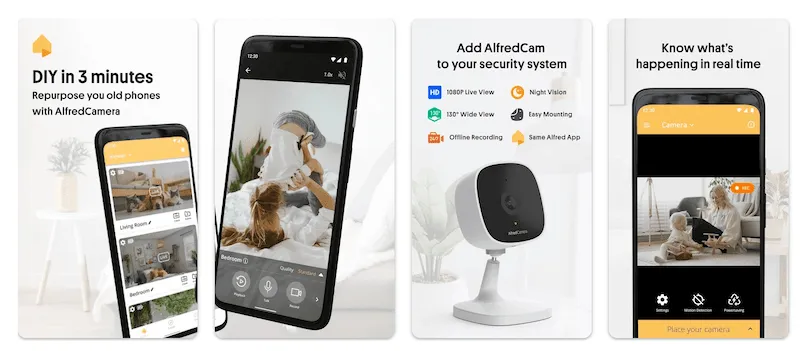
AlfredCamera’s made a name for itself as the most popular dedicated security camera app for Android and iPhone, with over 70 million downloads.
The user interface is minimal, and doesn’t require going through menu after menu to get to certain settings or features.
Camera devices are stacked on a single tab, from which users can view live streams. In the ‘More’ tab is a ‘Moments’ feature, where users find recorded events.
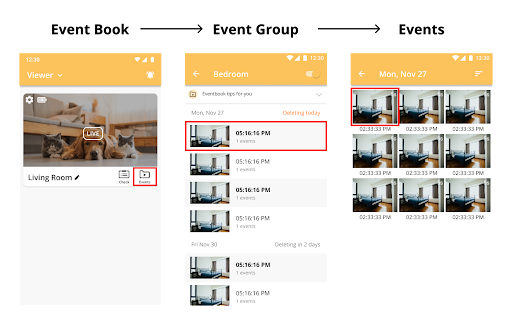
Live feeds are super reliable, and an unlimited number of devices can be added for free, no doubt helping AlfredCamera gain its reputation as the best Wi-Fi camera app for Android and iOS.
| Rating | Price | Downloads | Review | Updated? |
|---|---|---|---|---|
| 4.8 (App Store) 4.8 (Google Play) | Free, with the option for Premium from $5.99 | 70M+ | 635K (Google Play) 84.9K (App Store) | ✓ |
Don’t have a hardware security camera? No worries! At AlfredCamera, we believe everyone has the right to feel safe and secure. Check out our article on how to set up a phone as a security camera and discover how dedicated apps can be used as an alternative method of surveillance.
2. Kasa Smart App
Available on Google Play and the App Store.
Pros
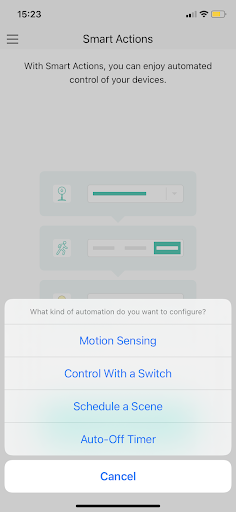
- Extensive automation options that are made much more manageable than in other smart home apps
- Modern, chic design
Cons
- The extent of settings options for the products and automations might be overwhelming at first
- Learning curve
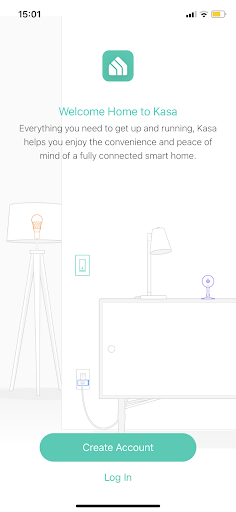
The Kasa Smart app acts as a hub for all kinds of home automation. Smart lighting, smart plugs, and security cameras provided under the Kasa brand all work with the app.
For new users, there is a moderate learning curve. The automation on offer here goes surprisingly deep. ‘Scenes’, for example, are timed schedules that stack multiple automations under one command.
As for security camera streaming, the interface is simple and easy to use, offering lots of customization, particularly when it comes to motion detection.
Though the five tabs and extensive settings options for its products might be overwhelming at first, this is a beautifully designed app that works flawlessly and successfully encourages manageable home automation.
| Rating | Price | Downloads | Reviews | Updated? |
|---|---|---|---|---|
| 4.7 (App Store) 4.7 (Google Play) | Free, with the option for Kasa Care from $3 a month per camera and Premium from $10 a month per account | 5M+ (Google Play) | 115K (Google Play) 42.9K (App Store) | ✓ |
3. Wyze App
Available on Google Play and the App Store.
Pros
- Great, straightforward options for automation
- Beautiful design
Cons
- Camera feed has consistent latency issues
- Settings are often several menus deep
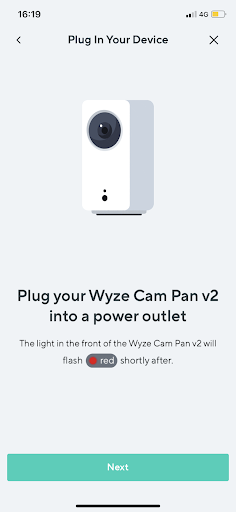
The Wyze app is a great looking counterpart to the popular budget security cameras.
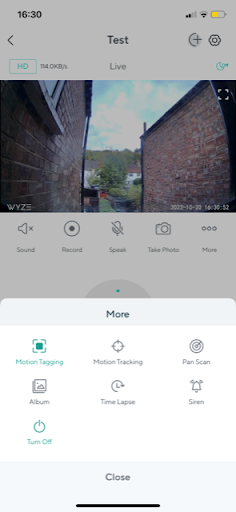
Feeds are displayed in the home tab and controls are laid out plainly for easy use, though be warned that some settings are buried several menus deep.
The events section is a cleanly designed calendar. It’s useful since the app adds a healthy dose of automation controls for users to take or leave as they wish.
Automations are called ‘rules’, and are defined as customizable shortcuts, schedules, device triggers, and location triggers. Experimentation is required, but they help make devices work around the user’s needs.
Live viewing of cameras is temperamental, so expect some degree of delay when viewing real-time footage.
| Rating | Price | Downloads | Reviews | Updated? |
|---|---|---|---|---|
| 3.5 (App Store) 3.9 (Google Play) | Free, with the option for Cam Plus starting from $1.67 | 5M+ (Google Play) | 62.9K (Google Play) 23.5K (App Store) | ✓ |
4. Google Home App
Available on Google Play and the App Store.
Pros
- Extremely minimal
- Useful way to stay on top of all kinds of Google home products, for effective automation
Cons
- Compatibility with third party devices is very hit-and-miss
- Consistent latency issues
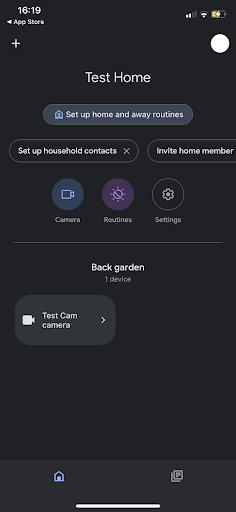
Google Home takes ‘less is more’ to its reasonable limit, so users might be a bit baffled when they first open the app to find two blank tabs–a home page and an events/suggestions page.
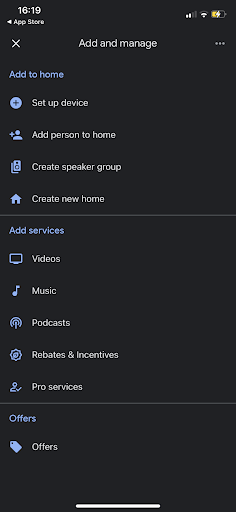
The minimal approach keeps things uncluttered and visually intuitive, syncing all Google products into one handy place. Tapping the + in the left corner gives options to add products.
Security cameras and doorbell cameras can be viewed from the Home tab, while detection events will be stacked alongside any other automation notifications in the events/suggestions tab.
As the reviews reveal, performance is hit-and-miss. What’s clear is that a strong internet connection is needed for the app to function fluidly.
| Rating | Price | Downloads | Reviews | Updated? |
|---|---|---|---|---|
| 4.5 (App Store) 4.2 (Google Play) | Free, with the option for Nest Aware from $6 | 100M+ | 2.08M (Google Play) 765K (App Store) | ✓ |
Nest Cam is one of the most popular home security devices on the market. Find out our thoughts on it.
5. Reolink App
Available on Google Play and the App Store.
Pros
- No sign-up required, allowing for a super fast setup
- Simple layout is easy to get to grips with
Cons
- Dull and dated design
- Automation is half-baked
Aside from some superficial issues, the Reolink app works well and is user-friendly.
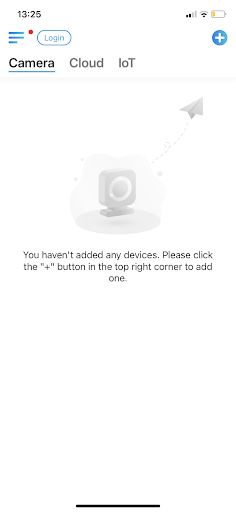
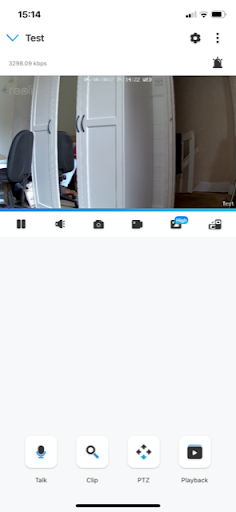
Camera feeds are presented under the ‘Camera’ tab at the top, which appears when the user opens the app. Beside that is a ‘Cloud’ tab, which makes accessing all cloud-stored footage a breeze.
This isn’t an app dedicated to smart homes in the way that Kasa Smart or Google Home is, but there is the option to add other devices on an IoT (internet of things) tab.
Perhaps the most unique feature is that Reolink doesn’t require a user account to be created to use any compatible products. Another win for the app is the superior quality settings, which allow for much greater customization than other apps.
| Rating | Price | Downloads | Reviews | Updated? |
|---|---|---|---|---|
| 2.7 (App Store) 2.7 (Google Play) | Free | 1M+ (Google Play) | 26.5K (Google Play) 1.8K (App Store) | ✓ |
FAQ
Who has the best security camera app?
AlfredCamera has over 70 million downloads, making it by far the most popular dedicated security camera app for Android and iPhone. With the release of AlfredCam, a hardware security camera designed for use with the app, it is now also set to introduce users to a variety of security options for the home.
What app works with all security cameras?
There’s a number of ‘universal’ apps that claim to work with different brands of IP camera, but, as app store ratings will reveal, they are plagued with problems and known for being temperamental at best. Stick to brand-specific apps to avoid problems.
What is the best app for security cameras on iPhone/Android?
AlfredCamera has over 70 million downloads across iOS and Android devices. It has received two Google Play awards and is beloved among the community, making it among the best apps for security cameras on iPhone/Android. It’s also completely free to use even without buying a hardware security camera, so it’s super convenient compared to other security camera apps.
How can I watch my security cameras on my phone?
- Download the camera’s dedicated app from the App Store or Google Play Store.
- Sign up using a complex password.
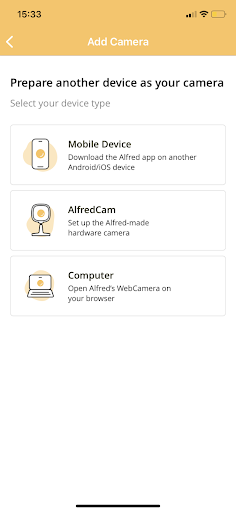
- Add a device by tapping ‘add a camera’, and ‘+’ sign, or an equivalent button.
Need more information on how it works? Here’s how to connect a security camera to your phone.
How can I see all security cameras at once?
Most mobile apps do not support viewing multiple security camera feeds at once, including all the apps in the list above, though they will be ‘stacked’ in the main tab for the user to tap and load.
How do I connect my surveillance camera to my Android phone?
Apps can be downloaded for Android from the Google Play Store, so open up the store and search for the surveillance camera brand. Download the app, sign up, and pair the device as instructed. Ensure that the surveillance camera in question supports Android devices, as some may not.
How much does AlfredCamera app cost?
AlfredCamera is free to download and use. For users that enjoy the app and want more, Premium is available for just $5.99 a month or $29.99 a year. Aside from providing an ad-free experience, it gives access to different AI-based features—find out more about them.
Conclusion
Allow us a humble brag. AlfredCamera has had over 70 million downloads since launch, built a solid and ever-growing community of AlfredCamera users, and has received two Google Play Awards. Not bad for a free security app!
Try out the most popular dedicated security app now to find out what it can do for you.